01. Overview
This project builds a dual-layer high availability architecture for SQL Server 2022 entirely inside a Hyper-V homelab. Layer 1 is Hyper-V's own VM failover and live migration — a node running a cluster VM can fail and the VM moves to another host automatically. Layer 2 is a SQL Server Failover Cluster Instance sitting on top, where the SQL resource group moves between two Windows Server VMs without dropping the connection endpoint. Together they protect the database from both physical host failure and OS-level SQL instance failure independently.
The starting point was a database already running in Azure SQL. The goal was to migrate it into an on-premises FCI, prove the architecture holds under failure conditions, and document the full process — including the parts that did not go smoothly on the first attempt.
02. Architecture
Dual-Layer Design
The architecture stacks two independent failover mechanisms. Each operates at a different layer of the infrastructure and protects against different failure types.
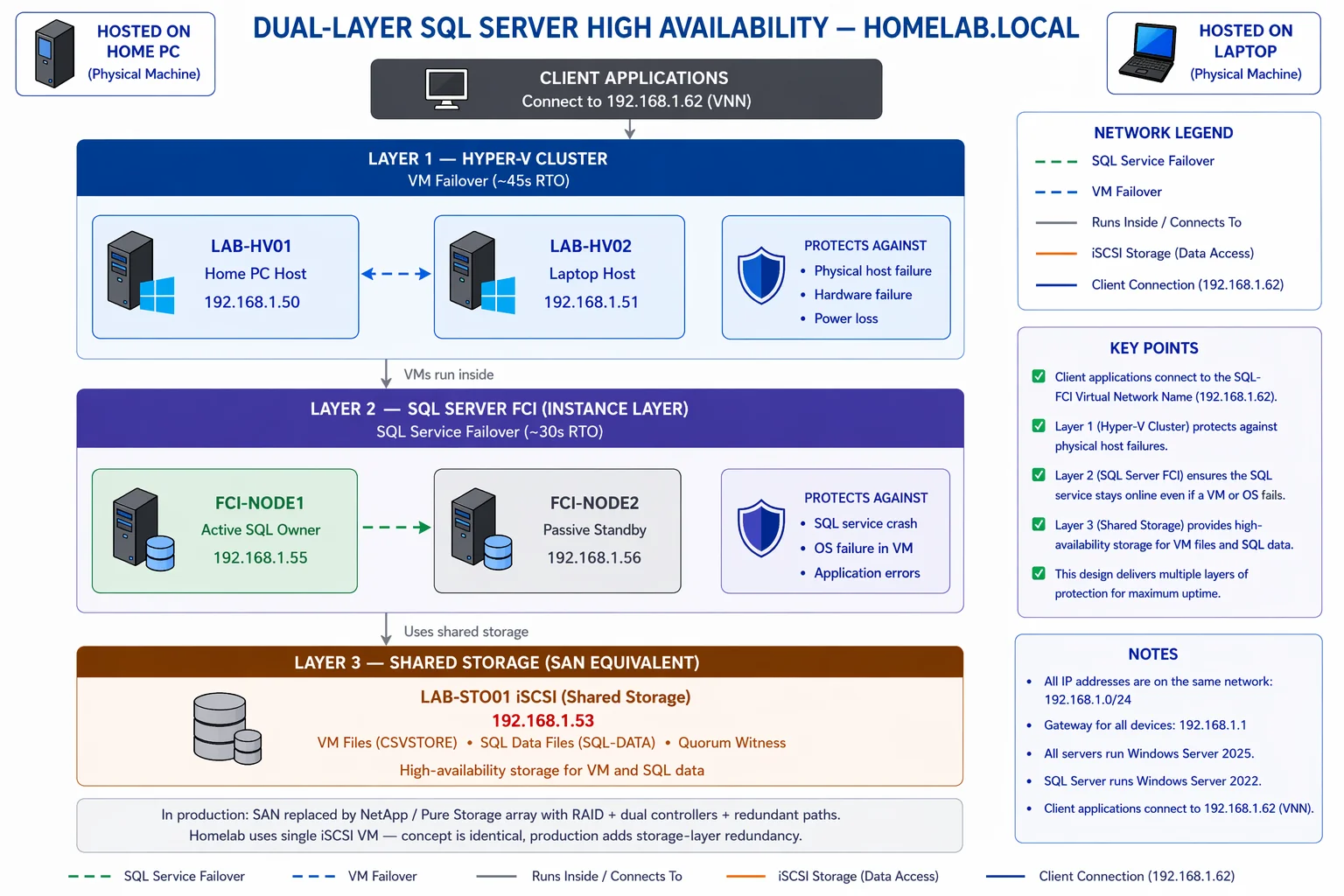 Fig. 1 — Dual-layer HA: Hyper-V VM failover (Layer 1) + SQL Server FCI (Layer 2)
| Layer | Technology | Protects Against | Recovery |
|---|---|---|---|
| Layer 1 | Hyper-V VM Failover / Live Migration | Physical host failure | VM moved to surviving Hyper-V host |
| Layer 2 | SQL Server FCI (WSFC) | OS / SQL instance failure | SQL resource group moves to passive node |
How SQL Server FCI Works
An FCI is not replication — both nodes access the same physical storage. At any given time one node owns the SQL Server resource group (active) and the other sits idle (passive). The shared disk, SQL Server service, and a Virtual Network Name (VNN) travel together as a unit when failover occurs. Clients connect to the VNN and never address either node directly, so the connection endpoint does not change during a failover event.
Shared storage is provided by an iSCSI target. Both cluster nodes connect to the same iSCSI LUN, but only the active node mounts it at any given time. WSFC coordinates exclusive ownership — it brings the disk online for the active owner and keeps it strictly offline on the passive node.
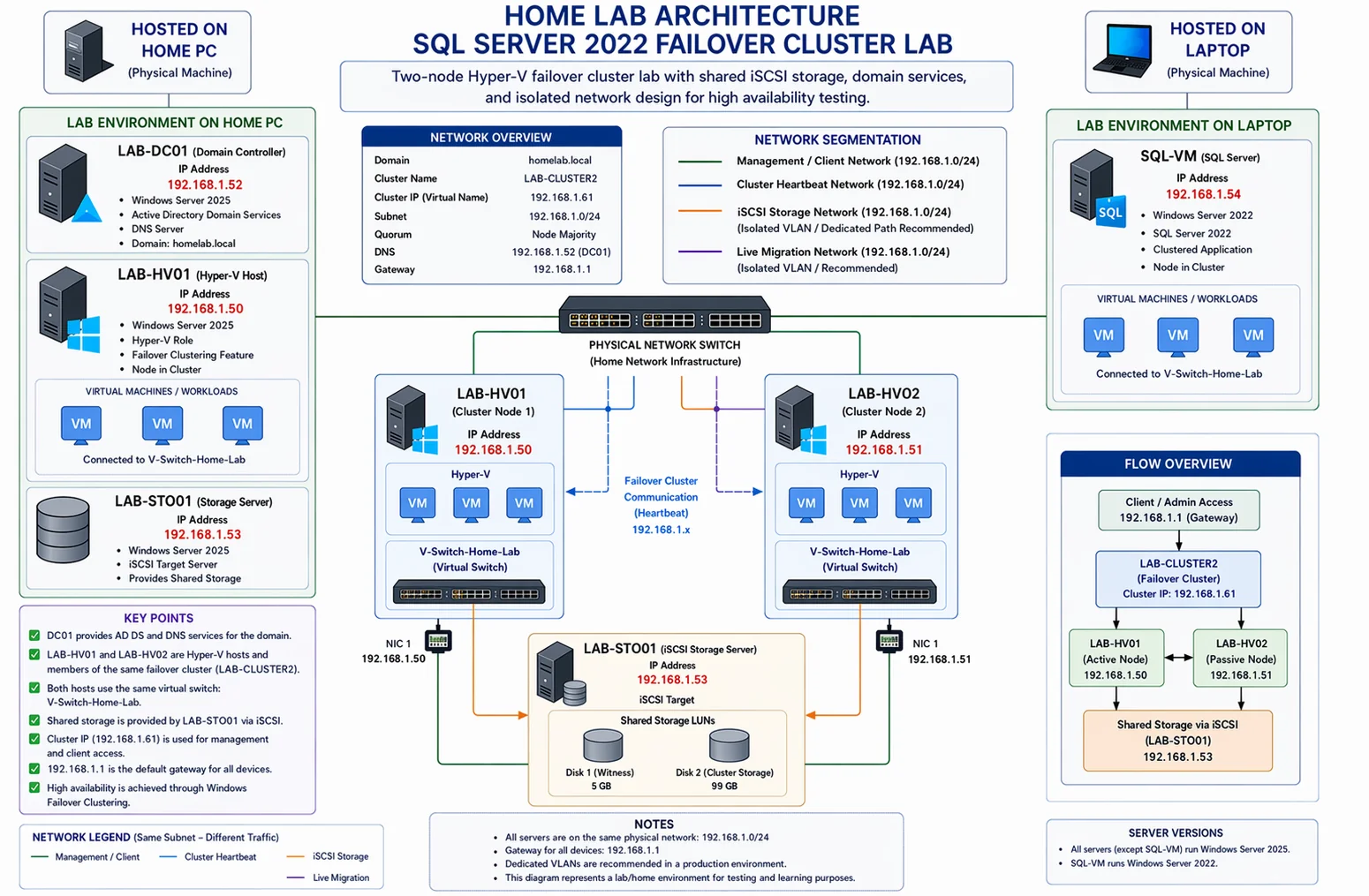 Fig. 2 — Full homelab topology: Hyper-V host, SQL nodes, storage server, and networking
Quorum
With two cluster nodes a quorum witness is essential. Without it, if one node loses connectivity both nodes believe they are the surviving majority and both attempt to bring resources online — a split-brain scenario that causes data corruption. A file share witness hosted on a third machine provides the tiebreaker vote. This lab uses a file share witness on the storage server.
03. Homelab Environment
Virtual Machines
| VM | OS | vCPU | RAM | Role |
|---|---|---|---|---|
| SQLNode1 | Windows Server 2022 | 4 | 8 GB | SQL FCI — primary node |
| SQLNode2 | Windows Server 2022 | 4 | 8 GB | SQL FCI — secondary node |
| StorageSrv | Windows Server 2022 | 2 | 4 GB | iSCSI target & file share witness |
Networking & Virtual Switches
Each VM has two virtual network adapters: one for management traffic and one dedicated to cluster heartbeat communication. Separating these is a WSFC best practice — cluster heartbeat traffic on a dedicated network prevents management congestion from masking node health and prevents false-positive failovers.
New-VMSwitch -Name "Management" -NetAdapterName "Ethernet" -AllowManagementOS $true
New-VMSwitch -Name "ClusterHeartbeat" -SwitchType Internal

# Assign adapters to each SQL node
Add-VMNetworkAdapter -VMName "SQLNode1" -SwitchName "Management"
Add-VMNetworkAdapter -VMName "SQLNode1" -SwitchName "ClusterHeartbeat"
Add-VMNetworkAdapter -VMName "SQLNode2" -SwitchName "Management"
Add-VMNetworkAdapter -VMName "SQLNode2" -SwitchName "ClusterHeartbeat"The homelab runs on a single physical NIC, which means management, iSCSI, cluster heartbeat, and Hyper-V live migration traffic all share the same physical link. In production this is a known anti-pattern — iSCSI benefits from a dedicated 10GbE NIC and heartbeat should be isolated from data traffic. In this lab it works, but it represents a single physical point of failure that a production design must address.
04. iSCSI Shared Storage
Storage Server — iSCSI Target
The storage server presents a block device (LUN) to the cluster nodes over the network as if it were locally attached disk. Windows Server 2022 includes an iSCSI Target Server role that handles this without any third-party software. The virtual disk is a .vhdx file on the storage server — WSFC cluster nodes see it as a raw disk once connected.
Install-WindowsFeature FS-iSCSITarget-Server -IncludeManagementTools

# Create the virtual disk that will be the shared cluster disk
New-IscsiVirtualDisk -Path "C:\iSCSI\SQLClusterDisk.vhdx" -Size 50GB

# Create the iSCSI target, allow only the two SQL nodes to connect
New-IscsiServerTarget -TargetName "sql-fci-target" `
    -InitiatorIds "IQN:iqn.1991-05.com.microsoft:sqlnode1",`
              "IQN:iqn.1991-05.com.microsoft:sqlnode2"

# Map the virtual disk to the target
Add-IscsiVirtualDiskTargetMapping -TargetName "sql-fci-target" `
    -Path "C:\iSCSI\SQLClusterDisk.vhdx"
SQL Nodes — iSCSI Initiator
Both SQL nodes connect to the same target. The key point is that both must see the same disk before the cluster is formed — WSFC handles exclusive ownership at the cluster level after that. The iSCSI initiator service needs to be running and set to auto-start on both nodes.
Start-Service MSiSCSI
Set-Service MSiSCSI -StartupType Automatic

# Discover the target portal (StorageSrv IP on the iSCSI network)
New-IscsiTargetPortal -TargetPortalAddress "10.10.0.10"

# Connect persistently so the connection survives reboots
Connect-IscsiTarget `
    -NodeAddress "iqn.1991-05.com.microsoft:storagesrv-sql-fci-target" `
    -IsPersistent $true

# Verify session is connected
Get-IscsiSession | Select-Object IsConnected, TargetNodeAddress
Once both nodes are connected, the LUN appears in Disk Management on both. Before forming the cluster, the disk needs to be initialised and formatted on one node only — WSFC takes exclusive control of it once the cluster is created.
Initialising and formatting the shared disk simultaneously on both nodes will corrupt it. Bring the disk online and format it on SQLNode1 only. SQLNode2 must see the disk in Disk Management but leave it offline until WSFC owns it.
05. Windows Server Failover Clustering
Install Failover Clustering Feature
Install-WindowsFeature Failover-Clustering -IncludeManagementTools
Install-WindowsFeature RSAT-Clustering-PowerShell

Restart-Computer -Force
Cluster Validation
Before creating the cluster, WSFC requires a validation run across all candidate nodes. This tests storage access, networking, and system configuration and flags anything that would prevent the cluster from functioning. Skipping this step is not an option for a supported configuration — Microsoft will not provide support for a cluster that bypassed validation.
Test-Cluster -Node "SQLNode1","SQLNode2" `
-Include "Storage","Network","System Configuration" `
-ReportName "C:\ClusterValidation\report"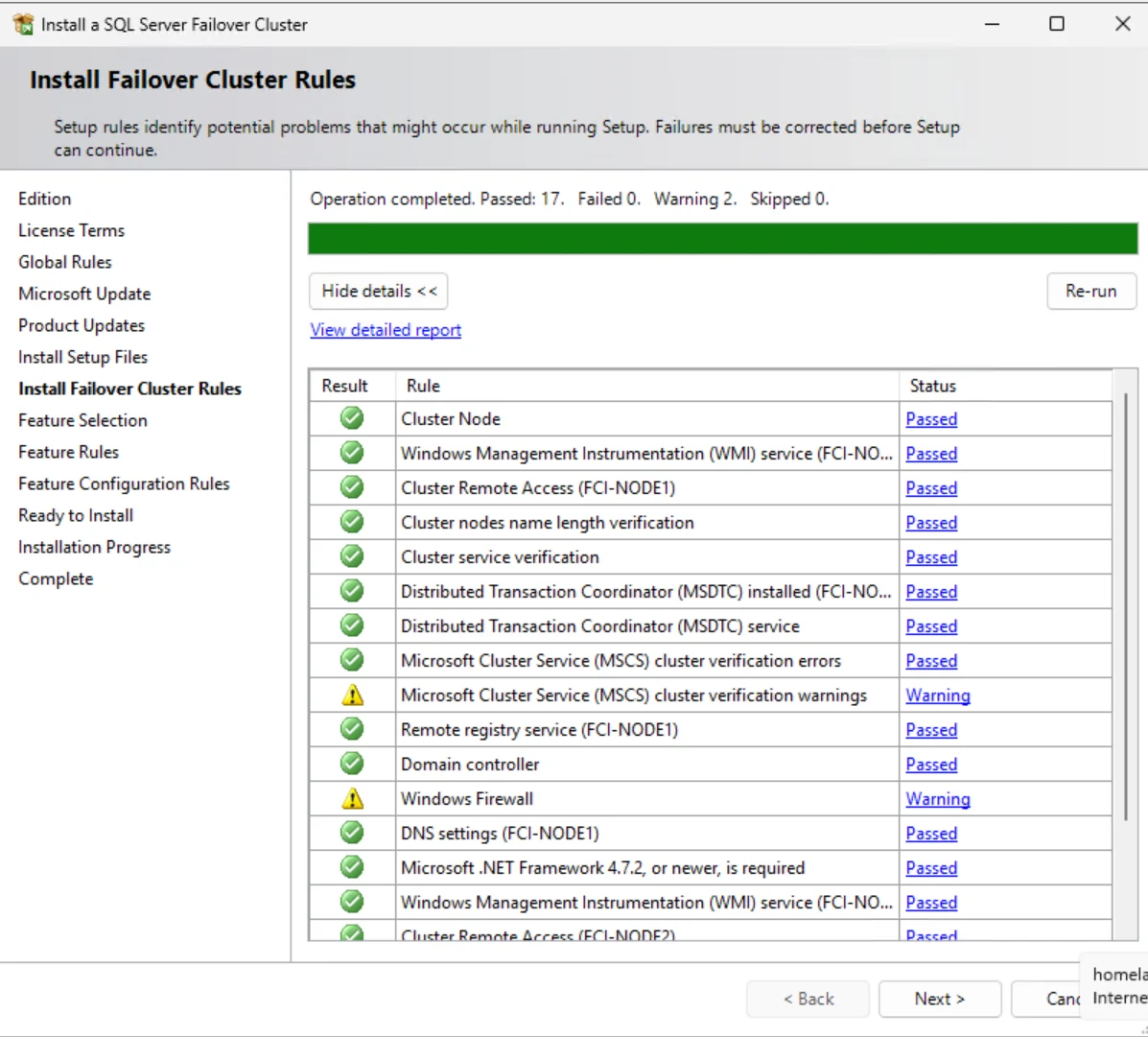 Cluster validation report — all storage and network tests passed
Create the Cluster
# Cluster name and IP must be unique in DNS / Active Directory
New-Cluster -Name "SQLCLUSTER" `
    -Node "SQLNode1","SQLNode2" `
    -StaticAddress "192.168.1.50" `
    -NoStorage

# Add the shared iSCSI disk to the cluster
Get-ClusterAvailableDisk | Add-ClusterDisk
Quorum — File Share Witness
With two nodes the cluster has an even vote count. A file share witness on the storage server gives the cluster a tiebreaker vote, preventing split-brain if the inter-node link goes down. The cluster computer account needs full control of the share.
# Create the share on StorageSrv first, grant SQLCLUSTER$ full control
Set-ClusterQuorum -Cluster "SQLCLUSTER" `
    -FileShareWitness "\\StorageSrv\SQLClusterWitness"

Get-ClusterQuorum
06. SQL Server FCI Installation
Node 1 — Create the FCI
The FCI installation runs from SQL Server 2022 setup with the InstallFailoverCluster action. This creates the SQL resource group inside WSFC, claims the shared disk, and registers the Virtual Network Name in DNS. The VNN is the name clients will use to connect — it stays stable across failovers.
setup.exe /ACTION=InstallFailoverCluster `
    /FEATURES=SQLENGINE `
    /INSTANCENAME="MSSQLSERVER" `
    /SQLSVCACCOUNT="DOMAIN\sqlservice" `
    /SQLSVCPASSWORD="P@ssw0rd!" `
    /AGTSVCACCOUNT="DOMAIN\sqlservice" `
    /INSTALLSQLDATADIR="S:\SQLData" `
    /FAILOVERCLUSTERNETWORKNAME="SQLFCI" `
    /FAILOVERCLUSTERIPADDRESSES="IPv4;192.168.1.60;Management;255.255.255.0" `
    /FAILOVERCLUSTERDISKS="Cluster Disk 1" `
    /IACCEPTSQLSERVERLICENSETERMS
The FAILOVERCLUSTERDISKS value must exactly match the disk name as it appears in Failover Cluster Manager — a mismatch here causes a silent failure during setup that is difficult to diagnose. Verify the exact name with Get-ClusterResource | Where-Object ResourceType -eq "Physical Disk" first.
Node 2 — Add to the Existing FCI
setup.exe /ACTION=AddNode `
/INSTANCENAME="MSSQLSERVER" `
/FAILOVERCLUSTERNETWORKNAME="SQLFCI" `
/SQLSVCACCOUNT="DOMAIN\sqlservice" `
/SQLSVCPASSWORD="P@ssw0rd!" `
/AGTSVCACCOUNT="DOMAIN\sqlservice" `
/IACCEPTSQLSERVERLICENSETERMS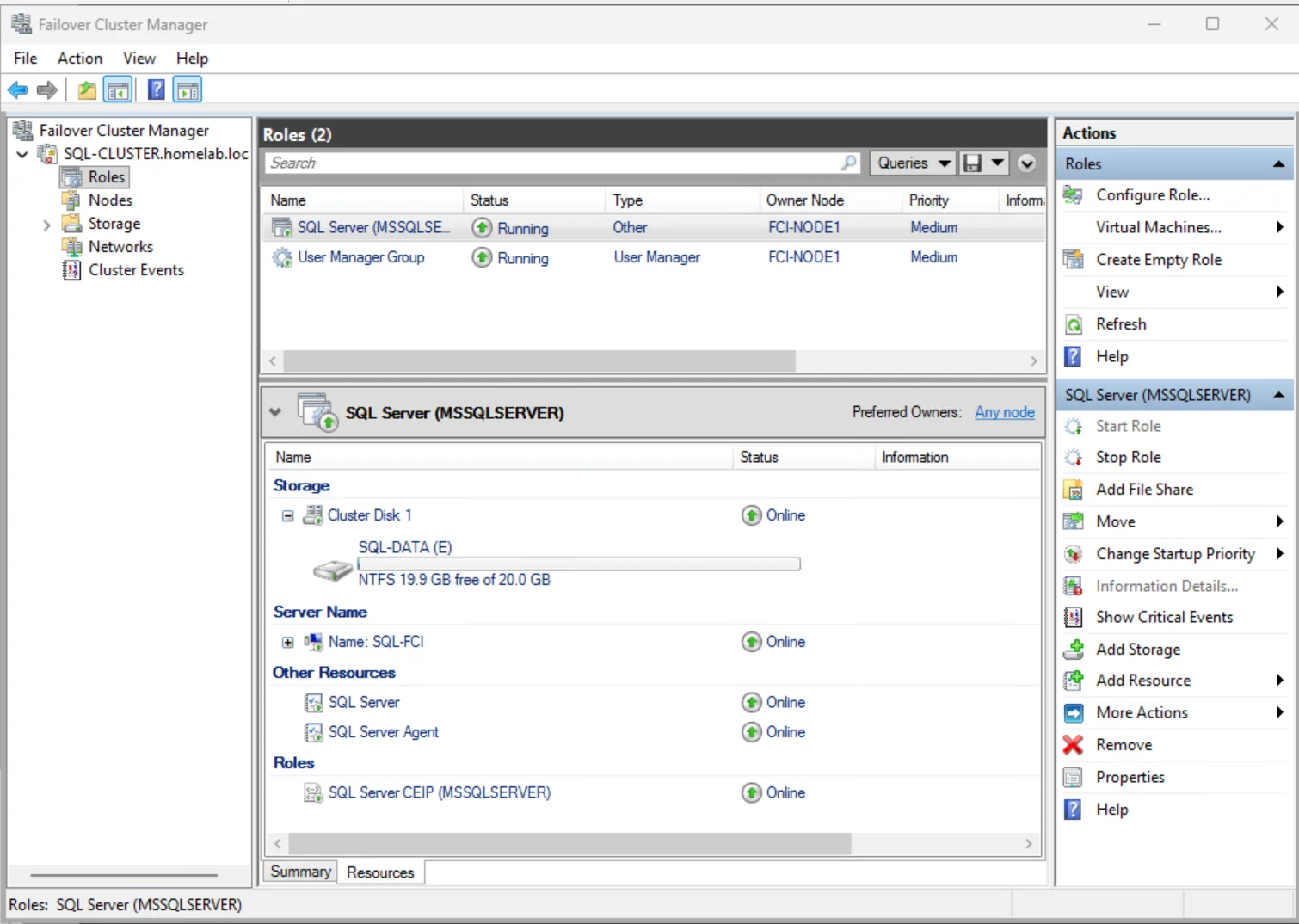 Failover Cluster Manager — SQL Server resource group active on SQLNode1, SQLNode2 passive
Database Migration from Azure SQL
The existing database in Azure SQL was migrated to the on-premises FCI using a .bacpac export. Azure SQL's export function produces a logical backup containing the full schema and data. This was imported into the FCI instance using SQL Server Management Studio, then the database files were moved to the shared cluster disk so they become part of the SQL resource group.
Azure SQL exports produce a .bacpac (schema + data, no transaction log history). A native .bak backup preserves transaction log history and allows point-in-time restore. For a lab migration either works. In production, use log shipping or Azure Database Migration Service to minimise the cutover window.
07. Failover Testing
Test 1 — Planned Failover
A planned failover moves the SQL resource group cleanly from the active node to the passive node. All in-flight transactions are committed first, the disk is taken offline on the current owner, resources come online on the target node, and clients reconnect via the VNN automatically. The connection interruption for clients was approximately 8 seconds.
# Check current owner before failover
Get-ClusterGroup -Name "SQL Server (MSSQLSERVER)" | Select-Object Name, OwnerNode, State

# Move the SQL resource group to Node2
Move-ClusterGroup -Name "SQL Server (MSSQLSERVER)" -Node "SQLNode2"

# Verify new owner after move
Get-ClusterGroup -Name "SQL Server (MSSQLSERVER)" | Select-Object Name, OwnerNode, State
Test 2 — Unplanned Failover
The unplanned test simulates a hard node crash — SQLNode1 was forcibly shut down from Hyper-V Manager without an OS shutdown. WSFC detected the loss of heartbeat within the configured failure threshold and brought the SQL resource group online on SQLNode2 automatically. Total outage from shutdown to SQL available on Node2: approximately 28 seconds.
Test 3 — Layer 1 Hyper-V Live Migration
With the FCI active on SQLNode2, a Hyper-V live migration was performed — the SQLNode2 VM was moved from one Hyper-V host to another while SQL was running and the FCI was active. SQL remained available throughout with zero connection interruption. This validates the dual-layer design: the FCI layer and the Hyper-V layer operate independently and simultaneously without interfering.
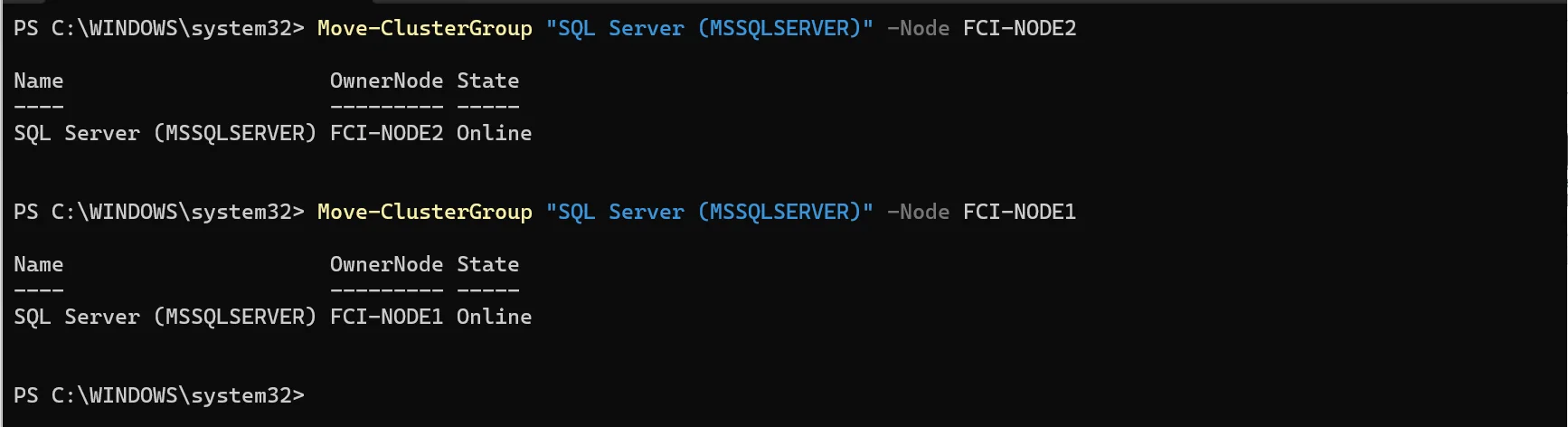 Post-failover state — SQL Server resource group now owned by SQLNode2, SQLNode1 passive
| Test | Method | Outage Window | Result |
|---|---|---|---|
| Planned failover | Move-ClusterGroup | ~8 seconds | Pass |
| Unplanned failover | Force shutdown SQLNode1 | ~28 seconds | Pass |
| Hyper-V live migration | VM live migrate with FCI active | 0 seconds | Pass |
08. Issues & Observations
What Worked Well
- The VNN approach means application connection strings never change during failover — this is the primary practical advantage over alternatives for legacy applications that cannot handle read-intent routing
- WSFC cluster validation caught two configuration issues before cluster formation: a mismatched NIC binding order and a DNS registration conflict — both were easy to fix once flagged, but would have been hard to diagnose at runtime
- File share witness quorum worked reliably across all three test scenarios without manual intervention
- The dual-layer design held up correctly: Hyper-V live migration and SQL FCI failover are independent and do not interfere with each other
Limitations & What Would Change in Production
| Issue | Impact in This Lab | Production Fix |
|---|---|---|
| Single physical NIC | Management, iSCSI, and heartbeat share one link — link failure takes everything down at once | Dedicated 10GbE NIC for iSCSI; separate NIC for cluster heartbeat |
| iSCSI storage SPOF | StorageSrv is a single VM — if it fails, both SQL nodes lose the shared disk and the cluster halts | Replicated SAN, Windows Storage Spaces Direct (S2D), or cloud witness storage |
| No redundant quorum witness | If StorageSrv is unavailable the file share witness is gone — on a two-node cluster this risks losing quorum on the next node failure | Azure Cloud Witness removes the dependency on an on-premises VM entirely |
| No readable secondary | Passive node is completely idle — no reporting traffic offload | Always On AG with a synchronous secondary for read scale-out (requires Enterprise) |
FCI vs. HA Alternatives
SQL Server offers three built-in HA strategies at different complexity and licensing levels. FCI was the right choice here for validating the shared-storage cluster mechanics and for applications that require a single stable connection name. In production the decision depends on RPO requirements, application compatibility, and licensing budget.
| Option | RPO | RTO | Readable Secondary | License |
|---|---|---|---|---|
| FCI | Zero (shared storage) | ~30s | No | Standard or Enterprise |
| Always On AG (sync) | Near-zero | ~20–30s | Yes (Enterprise) | Enterprise |
| Azure SQL Managed Instance | Seconds (geo-replication) | Minutes (geo-failover) | Yes | Per-vCore + Azure cost |
09. References
- SQL Server FCI — Microsoft LearnOfficial documentation covering FCI architecture, requirements, installation, and management for SQL Server on Windows Server Failover Clustering.
- Create a Failover Cluster — Microsoft LearnStep-by-step guide for creating a Windows Server Failover Cluster, including prerequisites, validation, and quorum configuration.
- iSCSI Target Server — Microsoft LearnDocumentation for the iSCSI Target Server role in Windows Server — setup, configuration, and best practices for providing shared block storage to cluster nodes.
- Always On Availability Groups — Microsoft LearnOverview of Always On AG as an alternative HA strategy, covering differences in RPO, RTO, readable secondaries, and Enterprise licensing requirements versus FCI.
- Deploy a Cloud Witness — Microsoft LearnGuide for using Azure Blob Storage as a quorum witness — eliminates the on-premises file share witness dependency that is a single point of failure in this lab design.